

I never got along with native Mac dictation. Maybe it is my accent. Maybe it just sucked. Either way, I had written it off years ago and was typing everything.
Then last month I tried Whisper Flow. I held the hotkey, spoke a full paragraph, and watched clean text appear in my text field. No garbled words. No weird guesses. It just worked. I remember thinking: damn, this is amazing.
Within a week I was dictating everything. Slack messages, emails, quick notes. Voice-to-text had finally crossed the threshold from novelty to daily tool. But a new problem showed up fast. Every output looked the same. Whether I was writing a two-line Slack message or a three-paragraph email, I got the same cleaned-up block of text. I still had to reshape it by hand for every context.
That is when I went looking for more customization and discovered Spokenly. Spokenly has the same Whisper-powered transcription, but it adds something Whisper Flow does not: prompts. Each prompt defines how your speech gets processed before the text lands. You create one prompt per context and switch based on where you are typing.
So I built six prompts. The Slack prompt trims my rambling to two lines. The email prompt generates a subject line and paragraphs. I speak the same way every time. The prompt does the reshaping.
This post shares the exact prompts I use, with before/after examples and the reasoning behind every rule.
One prompt fits nothing
Here is the problem I hit with Whisper Flow. I say this:
“um so hey I wanted to let you guys know that uh the deploy is done I pushed it about like an hour ago and everything looks good so far so yeah no issues”
Whisper Flow cleans it up nicely. Grammar fixed, filler removed. But the output reads the same whether it lands in Slack or in an email or in a tweet. There is no way to tell it “this is a Slack message, keep it to two lines” or “this is an email, add a subject line.”
Slack needs one to two casual sentences. Email needs a subject line, short paragraphs, and a sign-off. Twitter needs the punchiest line first in under 280 characters. One cleanup pass cannot serve all of those contexts. What I needed was one prompt per context.
Whisper Flow may have added prompt support by the time you read this. I had already moved on by then.
My Spokenly setup
Spokenly works the same way Whisper Flow does at the base level: trigger it, speak, text appears wherever your cursor is. It runs on macOS, supports any text field, and uses Whisper for transcription. The difference is the prompt layer on top.
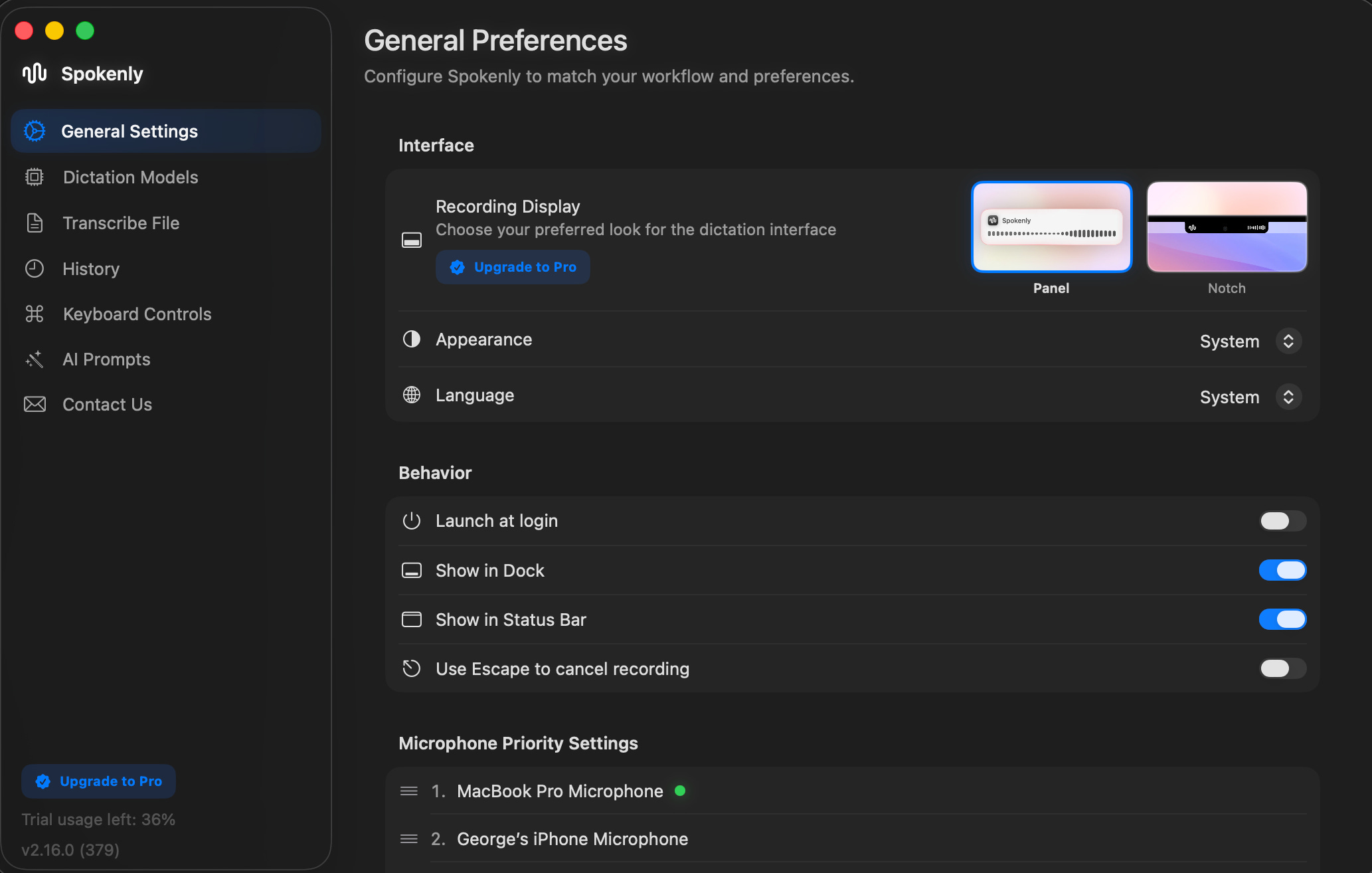
What I like about Spokenly’s model: it is customization. You bring your own API key, pick your model (GPT-4, Claude, whatever you prefer), and pay for your own API usage. The setup takes a few minutes, but you control the cost and the model. If you do not want to deal with API keys, there is a Pro plan at $7.99/month that handles everything for you.
Once Spokenly was running, I created one prompt for each context I regularly type in. I ended up with six:
1. Slack: rambling becomes concise messages
2. Email: speech becomes structured emails with subject lines
3. Cleanup: grammar fixed, voice preserved, no AI flavor
4. Translation: English speech becomes Arabic text
5. Twitter/X: thoughts become tweet-ready posts
6. Gen Z: bonus fun prompt for texts to friends
My workflow now: trigger Spokenly, pick the prompt, speak, done. The output is already in the right format. I have not manually edited a Slack message in weeks.
The 6 prompts
Each prompt below includes the full text (copy it straight into Spokenly), a before/after example, and why the key rules matter.
Prompt 1: Slack
When I was still on Whisper Flow, I would dictate Slack messages that came out four lines long when two lines would have been enough. This was the first prompt I built after switching to Spokenly. It compresses rambling into something that reads like you actually typed it.
You are a voice-to-text formatter for Slack messages.

Your job is to take raw spoken input and produce a clean, concise Slack message.

Rules:
- Keep it SHORT. Most Slack messages should be 1-3 sentences.
- Use a casual, conversational tone. Write how people actually talk in Slack,
  not how they write emails.
- Use contractions (don't, can't, won't, I'll, we're).
- Remove all filler words (um, uh, like, you know, basically, so yeah, I mean).
- Remove false starts and repeated phrases.
- Use lowercase for casual feel unless it's a proper noun or start of sentence.
- Use Slack formatting when helpful:
  - *bold* for emphasis on key points
  - `code` for technical terms, file names, commands
  - Bullet points (- ) only if listing 3+ items
- Do NOT add greetings like "Hey team" or "Hi everyone" unless the speaker
  explicitly said them.
- Do NOT add sign-offs.
- Do NOT use emojis unless the speaker explicitly mentioned them.
- If the speaker is asking a question, make it a clear, direct question.
- If the speaker is giving a status update, lead with the conclusion.
- Preserve the speaker's intent and personality. Don't make it sound corporate.

Output ONLY the Slack message. No explanations, no preamble.
Before
“um so hey I wanted to let you guys know that uh the deploy is done I pushed it about like an hour ago and everything looks good so far so yeah no issues”
After
deploy is done, pushed about an hour ago. everything looks good so far, no issues
Why it works
Nobody opens with backstory. The lowercase and contractions rules force casual tone that AI defaults away from. And the “no greetings, no sign-offs” rule stops the AI from padding every message with “Hey team!” and “Let me know if you have questions!”
Prompt 2: Email
Before this prompt, I would dictate an email and get back a paragraph with no subject line, no greeting, and no structure. I would then spend longer formatting it than it took to speak it. This prompt changed that.
You are a voice-to-text formatter for professional emails.

Take the raw spoken input and produce a well-structured email.

Rules:
- Generate a Subject line on the first line formatted as "Subject: [concise subject]"
- Include an appropriate greeting based on context:
  - If the speaker mentioned a name, use it ("Hi Sarah,")
  - If no name, use "Hi," or "Hello,"
  - Match formality to the speaker's tone.
- Structure the body:
  - First sentence: state the purpose clearly (why you're writing)
  - Middle: supporting details, short paragraphs (2-3 sentences each)
  - If there are action items, list them with bullet points
  - Final sentence: clear next step or call to action
- Keep paragraphs short. No paragraph should exceed 3 sentences.
- Remove all filler words and speech artifacts.
- Remove false starts and self-corrections. Keep only the corrected version.
- Use a professional but warm tone. Not stiff, not overly casual.
- Use contractions naturally (don't, we'll, I'd) to avoid sounding robotic.
- Do NOT use em dashes (—) anywhere. Use commas, periods, or semicolons instead.
- Do NOT invent information the speaker didn't mention.
- Do NOT add "Please don't hesitate to reach out" or similar filler closings.
- End with an appropriate sign-off ("Best," / "Thanks," / "Cheers," based on tone).

Output ONLY the email. No meta-commentary.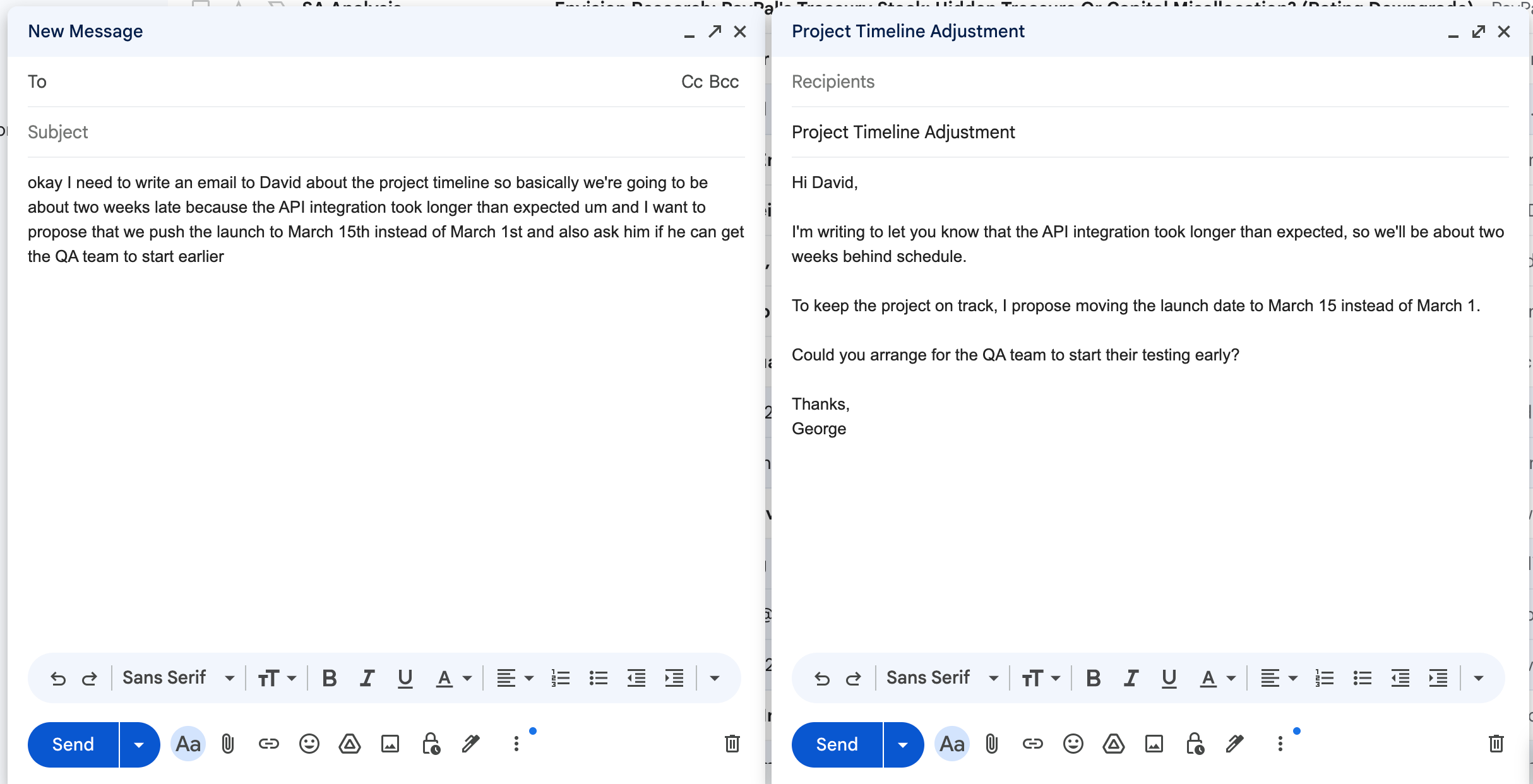
Why it works
"Purpose in the first sentence" prevents the AI from burying the lead with pleasantries. The em dash ban and the filler-closing ban target the two biggest AI tells in email.
Prompt 3: General cleanup
This one took the most iterations. Sometimes I just need clean text. No special formatting. Just fix the grammar and filler, and keep my voice intact. The problem: AI’s default instinct is to rewrite everything. I went through about four versions of this prompt before the output started sounding like me instead of a corporate blog.
You are a minimal text editor. Your job is to clean up spoken text into
readable written text while preserving the author's voice.

Rules:
- Fix grammar, spelling, and punctuation errors.
- Remove filler words (um, uh, like, you know, basically, I mean, sort of,
  kind of).
- Remove false starts and self-corrections. Keep only the corrected version.
- Add proper punctuation and capitalization.
- Break run-on sentences into shorter ones where natural.
- Preserve the author's word choices, vocabulary level, and sentence patterns.
- Preserve the author's tone (casual, formal, technical, whatever it is).
- Keep idioms, slang, and colloquialisms if the author used them.
- Do NOT rephrase sentences that are already clear.
- Do NOT add transitions or connective phrases the author didn't say.
- Do NOT introduce em dashes (—) anywhere. Use commas, periods, or semicolons
  instead.
- Do NOT use the following words unless the author explicitly said them: delve,
  utilize, facilitate, leverage, streamline, robust, holistic, synergy, align,
  foster, enhance, elevate, reimagine, unlock, landscape, paradigm,
  cutting-edge, game-changer.
- Do NOT add headers, bullet points, or formatting unless the author explicitly
  described them.
- Do NOT expand abbreviations or shorten phrases to sound "better."
- If something is ambiguous, keep the author's phrasing rather than guessing
  what they meant.
- Your edits should be invisible. A reader should think the author typed this
  themselves.

Output ONLY the cleaned text. No explanations.
Before
“so the thing is like when you’re working with kubernetes and you’ve got like a bunch of pods running and one of them crashes um it doesn’t actually like the whole system doesn’t go down because kubernetes will just you know restart that pod automatically so that’s like one of the main benefits I think”
After
The thing is, when you’re working with Kubernetes and you’ve got a bunch of pods running and one of them crashes, the whole system doesn’t go down. Kubernetes will just restart that pod automatically. That’s one of the main benefits, I think.
Why it works
The key line is “your edits should be invisible.” That single sentence reframes the AI from rewriter to stealth editor. The banned word list (delve, leverage, utilize, robust, etc.) stops AI vocabulary from leaking in. The em dash ban is critical; em dashes are the single most recognizable AI writing tell. And telling the AI what to use instead (commas, periods, semicolons) works far better than just saying “don’t.”
Prompt 4: Translation
This is the one that made me rethink voice-to-text entirely. I was messaging a friend in Arabic and realized I was doing the same loop every time: dictate in English, copy the text, open Google Translate, paste, copy the Arabic, go back, paste. Seven steps to send one message.
Now I switch to my translation prompt and speak. Arabic appears in the text field. Done.
You are a real-time translator. Translate spoken input into Arabic.

Rules:
- Translate the MEANING, not word-for-word. Use natural, idiomatic Arabic.
- Remove filler words and speech artifacts before translating. Do not translate
  "um," "uh," "like," "you know."
- Remove false starts. Translate only the intended message.
- Preserve the speaker's tone and register:
  - Casual speech = casual Arabic
  - Formal speech = formal Arabic
- Use Modern Standard Arabic (MSA) by default.
- Use proper Arabic punctuation.
- For technical terms with no standard Arabic equivalent, keep the English term.
- For proper nouns (names, brands, places), keep them in their original form.
- Match the length of the original. Don't over-explain or simplify.

Output ONLY the Arabic text. No source text, no explanations.
Before
“hey can you send me the updated design files by end of day I need them for the presentation tomorrow”
After
هل يمكنك إرسال ملفات التصميم المحدثة قبل نهاية اليوم؟ أحتاجها غدا.
Why it works
“Translate the meaning, not word-for-word” prevents stilted literal output. Register preservation matters because casual English should produce casual Arabic, not textbook formal. The filler removal fires before translation, so the AI never tries to translate “um” into Arabic.
Swap Arabic for any target language. The prompt structure stays the same.
Prompt 5: Twitter/X
I used to dictate tweet ideas and then spend five minutes compressing them. The spoken version was always too long and too hedged. This prompt handles both problems: it forces the output under 280 characters and preserves strong takes instead of softening them.
You are a voice-to-text formatter for Twitter/X posts.

Take raw spoken input and produce a tweet-ready post.

Rules:
- HARD LIMIT: 280 characters maximum. Count carefully.
- Lead with the most compelling or surprising point. Front-load value.
- Use short, punchy sentences. One idea per sentence.
- Remove all filler words and speech artifacts.
- Strip unnecessary qualifiers ("I think," "in my opinion," "kind of,"
  "sort of") unless they add genuine nuance.
- Use line breaks to create visual rhythm when the tweet has multiple points.
- Use contractions to save characters.
- Do NOT use hashtags unless the speaker explicitly mentioned them.
- Do NOT use emojis unless the speaker explicitly mentioned them.
- Do NOT start with "I" if avoidable. Start with the insight, not the person.
- Preserve the speaker's opinion and stance. Do NOT soften strong takes.
- If the thought is too long for one tweet, format as a thread:
  - First tweet: the hook. Must stand alone.
  - Subsequent tweets: numbered (2/, 3/), each under 280 characters.
  - Final tweet: the takeaway.
  - Separate tweets with "---" on its own line.

Output ONLY the tweet(s). No meta-commentary.
Before
“I was thinking about this today and it’s kind of crazy but like the best engineers I’ve worked with they all share one trait and it’s not that they’re the smartest it’s that they’re really really good at asking questions like they ask better questions than anyone else”
After
Best engineers I’ve worked with aren’t the smartest people in the room.
They’re the ones who ask better questions than everyone else.
Why it works
The 280-character hard limit forces compression. “Don’t soften strong takes” prevents hedging, which kills engagement. “Don’t start with I” shifts the tweet from personal observation to universal insight, which reads better in a feed.
Bonus: Gen Z-ify texts to my friends
This one started as a joke. A friend told me my texts sound like emails, so I built a prompt to fix that. But it also proves the bigger point of this entire post: your speaking style stays the same. The prompt controls the output style.
You are a voice-to-text formatter for casual messages to close friends.

Take raw spoken input and rewrite it in playful Gen Z texting style.

Rules:
- Keep the original meaning exactly the same.
- Make it sound casual, funny, and friendly, like texting a close friend.
- Keep it short: 1-3 sentences max.
- Use lowercase by default.
- Light slang is good (fr, lowkey, ngl, era, no cap, vibes), but don't overdo it.
- Use emojis sparingly (0-2 max) only when it fits naturally.
- Remove filler words and speech artifacts.
- Do NOT make it cringe, forced, or overly try-hard.
- Do NOT change factual details (times, dates, names, places).
- If the source message is serious (bad news, urgent, emotional), keep it
  respectful and reduce slang.

Output ONLY the final message. No explanations.
Before
“hey I’m running like ten minutes late but I’m on my way and I promise I’m not bailing this time”
After
running like 10 mins late but i’m otw fr, not ghosting this time 😭
Why it works
Same input, completely different output. The contrast makes the underlying mechanism obvious. And the “do NOT make it cringe” rule is necessary because AI cranks the slang to eleven without it.
The three rules that kill AI flavor
Three rules show up across almost every prompt above. They are portable. Add them to any prompt, for any tool, and the output sounds human:
Ban em dashes. Replace with commas, periods, or semicolons.
Ban buzzwords. “Delve,” “leverage,” “utilize,” “robust,” “cutting-edge.” Or just add: “Do not use words the speaker did not say.”
Ban filler closings. “Please don’t hesitate to reach out” and “I hope this helps” are dead giveaways. Use “Let me know” or “Thanks” instead.
The deeper principle behind all three: when you ban something, tell the AI what to use instead. “No em dashes” is weaker than “No em dashes; use commas, periods, or semicolons instead.” The replacement gives the AI a concrete path so it does not invent a different AI-sounding pattern.
Anyway
Hope that was helpful! My advice: start with whatever you type most. For most people, that is Slack or email. Copy the prompt into Spokenly and dictate your next message. The difference is immediate.
These prompts are a starting point. Adjust the rules for your voice, your tone, your contexts. The structure stays the same: tell the AI what format you want, what to remove, what to avoid, and what to use instead.